
I used to drown in email.
You know the feeling. You clear it at 9 AM, and by 11 AM, the hydra has grown three new heads. It’s not just the volume; it’s the mental load.
The average professional spends over 4 hours per day on email. That’s half a workday lost to scanning, sorting, and wondering “Did I ever reply to Sandra?”
I’ve applied the “Inbox Zero” methodology for years (using the 5 D’s framework), but recently, I realised something: Inbox Zero is a manual job. I wanted Inbox Auto.
So, I decided to hire a “Chief of Staff.” Not a human one, but an AI agent called Jace AI.
The promise? To clone my decision-making process and handle 90% of my email before I even see it.
The “Hiring” Process (Setup)
The weirdest part about setting up Jace is that it feels less like installing software and more like onboarding a new employee.

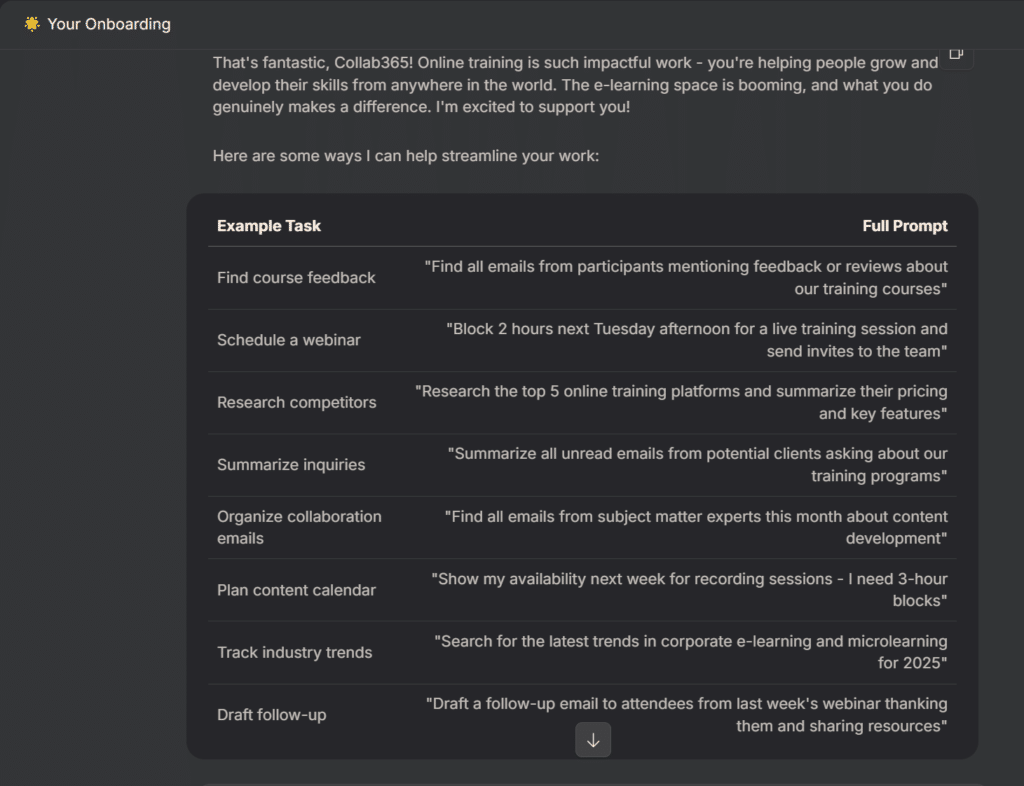
When you first sign up, you aren’t greeted with a dashboard of settings; you’re introduced to Jace… and on answering questions, get suggestions on how Jace might help you.
The Prerequisites
Before you jump in, here is what you need to know about Jace AI:
- The Cost: It starts with a 7-day free trial, then moves to $25/month (Standard) or $50/month (Pro). It’s not cheap, but neither is a human assistant.
- The Permissions: This was the “gulp” moment for me. Jace asks for full access to read/write your mail and calendar.
- Why? It can’t act as your Chief of Staff if it can’t read the incoming memos.
- Is it safe? They are SOC2 Type 1 certified, and they explicitly state they never train their public AI models on your private data.
Once I connected one of my work accounts, the magic started.

From Manual to Automatic: The 5 D’s
In the Collab365 Inbox Zero workshops the 5 D’s of email management are discussed: Delete, Direct, Do, Delegate, and Defer.
Usually, you have to do these manually for every single email. Jace automates them. Here is how it handled my workflow.
1. Direct (AI Sorting vs. Old School Rules)
Most of us try to control the chaos with email rules (“If subject contains ‘newsletter’, move to folder”). But rules are rigid. An important email from a new contact often gets buried with the promotions.
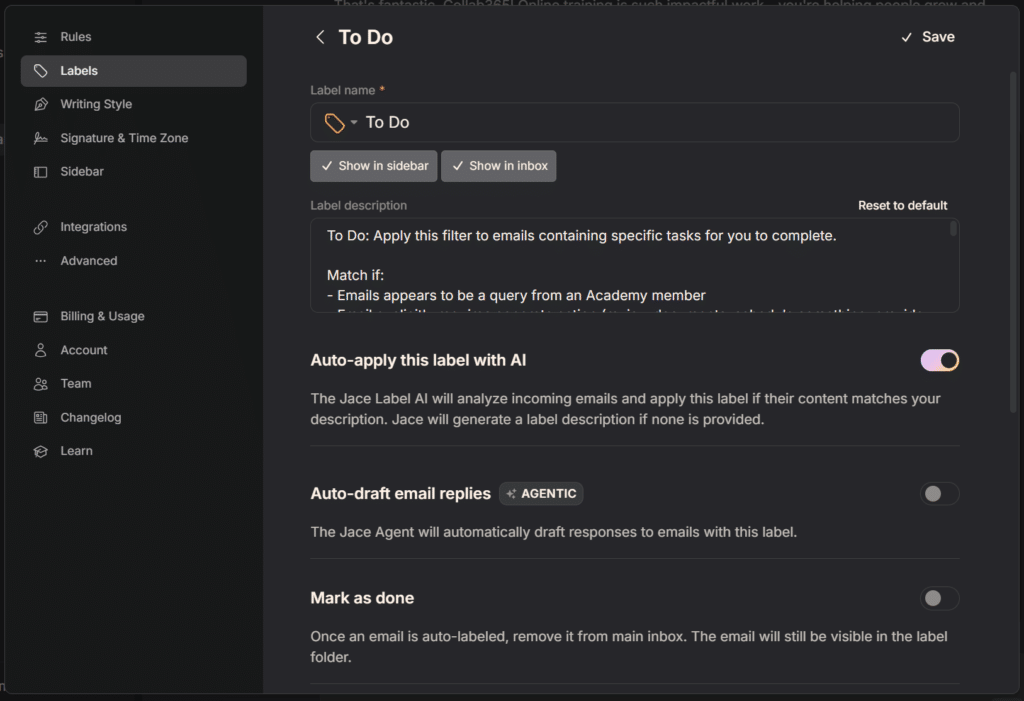
Jace uses AI Labels to understand context, not just keywords. It pre-sorts mail into “To Do,” “FYI,” and “Needs Reply” based on what the email actually says and based on the Natural Language Processing of the rules you have defined in words.

I even trained it on a custom “To Do” label, telling it exactly what I consider a task. Yes it felt like rewriting my job description for a robot, but as its natural language, it was easy to do compared to trying to define static rules outlook.
2. Delegate (The “Waiting” Game)
This is one of my favourite features. We all have those emails where we ask for something and then forget to chase it up.
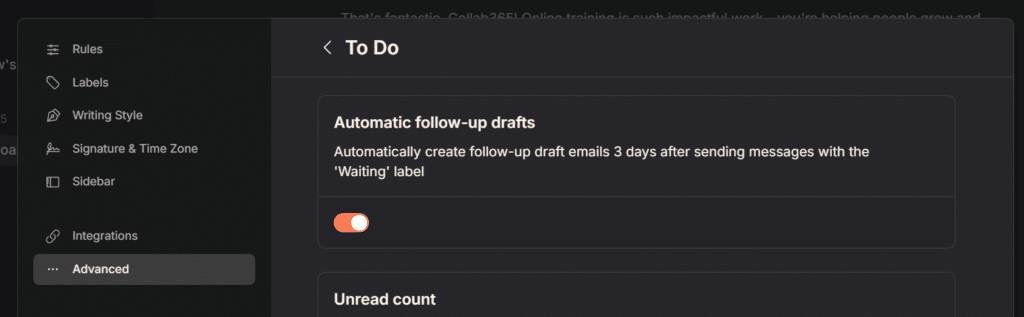
Jace has a “Waiting” label. If you tag an email with this, Jace watches the thread. If no one replies in 3 days, it automatically drafts a polite follow-up. A simple feature that really helps.
3. Defer (Calendar Integration)
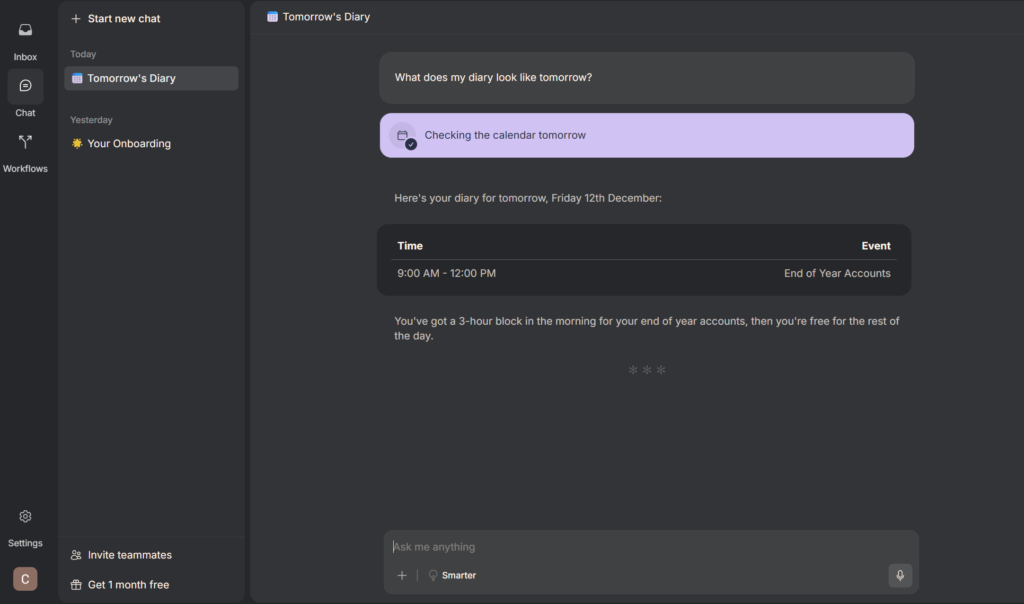
Switching between Outlook calendar and your inbox is a pain. Jace has a chat interface that lives right next to your email. I can just ask it: “What does my diary look like tomorrow?”
4. Search (Finding by Meaning)
Traditional email search fails because you can never remember the exact keywords. Jace uses Semantic Search.
I tested this by asking: “Find the email from last month where someone asked about AI” Although the basic search didn’t find anything, the Chat with Jace AI option then found various emails, it even found sound where the content was AI related but ‘AI’ had not been mentioned anywhere. Also helpful it went on to also list emails that just had AI mentioned in them, rather than someone asking a question.
The Brain Behind the help: Rules & Knowledge
If the 5 D’s are the actions, the Rules engine is the intelligence. This is where the magic happens.
Jace doesn’t just guess; you can build a Knowledge Base to teach it exactly how to deal with your specific inbox chaos. This lives in Settings > Rules, but you don’t need to be a coder to use it. You just talk to it in plain English.
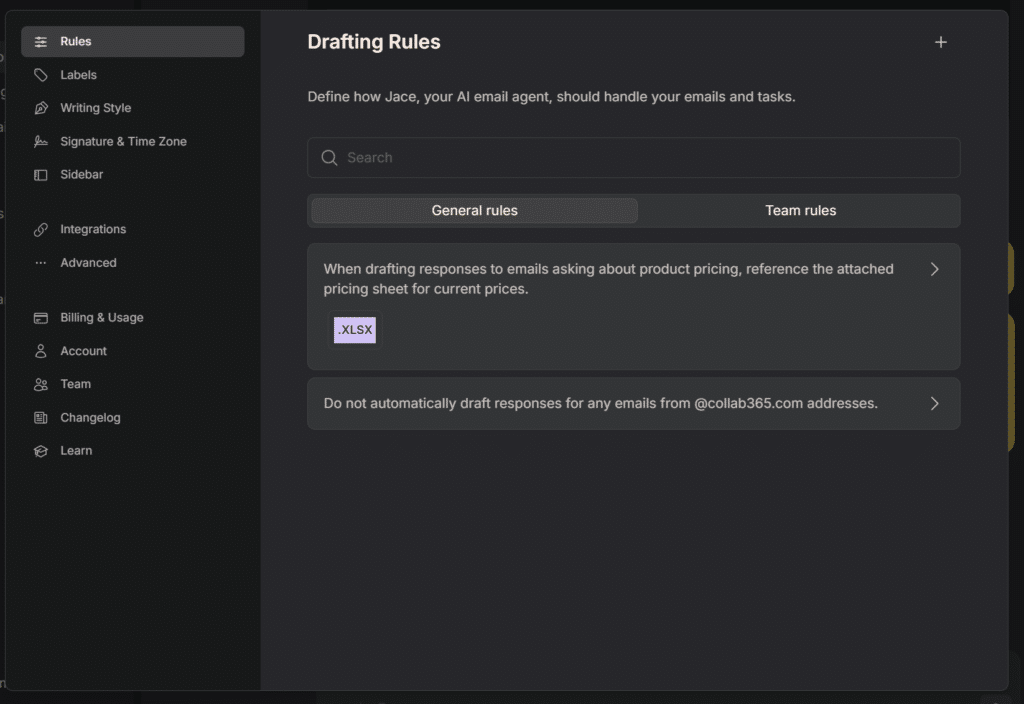
You can add these from directly in the RULES window or like I did you can add them from within the Jace chat, maybe whilst discussing an email reply with Jace you realise you need to add a rule around this, you can just ask Jace to add it right there in the chat you are in.
I gave it two specific instructions in my example:
1. The “Negative” Constraint
I didn’t want it to interfere with my internal team emails. So I just typed:
“Can you remember that for any emails with @collab365.com, please don’t draft a response.”
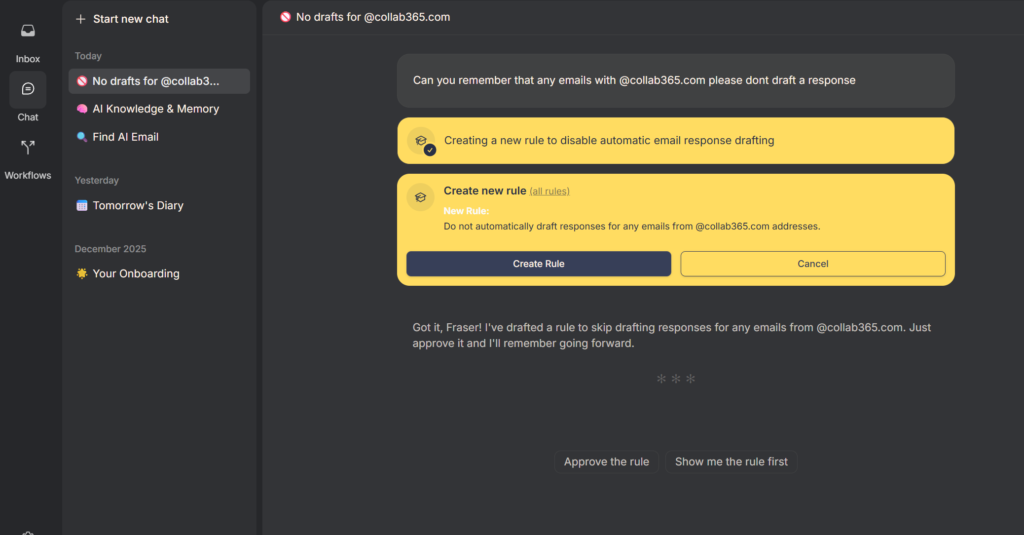
It plays your rule back to you, click ‘Create Rule’ and done. It instantly stopped proposing drafts for my team, saving me from reviewing unnecessary auto-replies as most of our team comms and decisions is done in Teams.
2. The “Knowledge” Injection
This was the game-changer. I get asked about pricing and product details constantly. Instead of typing it out or pasting a link, I simply uploaded my pricing spreadsheet and said:
“This is my current pricing details. Reference this document when drafting responses to emails asking about product pricing.”
Jace played it back to me, reading the Excel file and presenting back what was in it, to confirm, and again just by clicking ‘Create rule’… Now, when a prospect asks “How much is the enterprise plan?”, Jace checks the Excel file, finds the number, and drafts a reply with the exact figure.
I also added documentation about service levels in PDF form, some key facts just in free text form and various other knowledge base items along the way.
This is a simple example but the power of having that knowledge base (within the rules) to hand Jace to help manage your inbox and draft replies is huge, particularly for those inboxes that are support-based Inboxes… the possiblities do seem endless, and as far as I can tell ( I did ask Jace) there doesnt seem to be a limit on number of rules or size of them.
Jace AI Can Access Your Data, Knowledge and SOPs almost anywhere
It doesn’t end there, via the various integrations that are available within Jace AI you can easily connect it to and get to reference information that already exists. Jace AI allows you to link existing data sources. e.g. SOPs documents in your OneDrive or Google Drive. This means that it can use that information that you may already have and apply it to its actions and draft replies to save you time.
Workflows & Automations
Although I havent yet exploited this part of Jace AI, this functioanlity couple with the available integrations can really make for a powerful setup. These automations around your inbox are like Power Automate built specifically for your mailbox. By chaining intelligent triggers with external integrations (like CRM lookups, Jira ticket creation, or Slack alerts), you can transform a simple “Contact Us” email into a fully routed, categorized, and acknowledged workflow before a human even sees it.
This area of Integrations and Automations is covered in a little more details in this blog post: How Jace AI Autopilots Your Support Mailbox – So You Can Stop Drowning in Emails
The Ultimate Test: “The Clone Moment”
All of the sorting is nice, but the real question was: Does it work and can it write like me?….in short, Yes!
The “Do” phase of Inbox Zero is usually about clearing 2-minute tasks. Jace turns these into 20-second approvals.
I opened an email from a client asking for a project update. Normally, I’d spend 5 minutes crafting the right tone. With Jace, a draft was already waiting. It had read the thread, pulled the context, and written a response in my voice.
The response emails were drafted perfectly and accurately, ready to go with a great tone and with all the information needed:
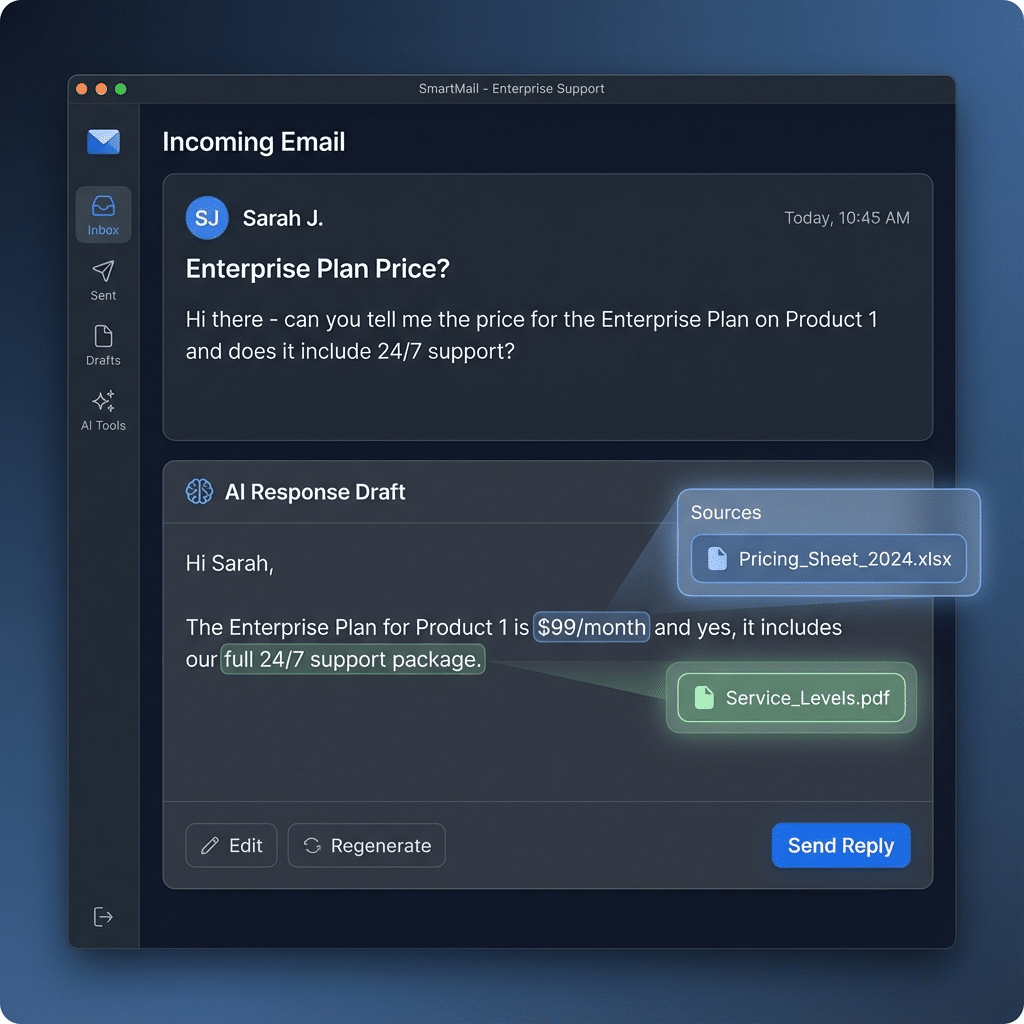
I scanned the emails. I didn’t change a word. I hit send… That was the moment I realised: this isn’t just a tool with and easy to do set of ‘training’ via rules or integrations, it is a clone of me.
The Verdict: Is it Worth $25/Month?
The Good:
- Mental Clarity: My inbox is no longer a to-do list; it’s a command center.
- Time: I’m spending about 20 minutes a day on email, down from several hours.
- The “Butler” or “Chief of Staff” Feel: Features like auto-follow-ups make me feel like I have a real executive assistant.
The Not-So-Good:
- The Price: It is an investment. If you just check email casually, stick to Gmail or Outlook, but if you have a busy inbox, a company to run, or manage a support \ contact us mailbox, then the price is well worth it.
- Friction: Simply trusting it takes time. You might find yourself double-checking its work for the first week (which is natural and of course, advised as part of the training process, just like with humans).
Final Thought: If your hourly rate is more than $25, and you spend more than an hour a day on email, this pays for itself in the first week. It turns the 2-minute decision of “What do I do with this email?” into a 2-second approval. The key to success with this tool and your mailbox is to ensure you invest the time in training it, which is very quick and very easy. Once you have it up and running, it is like having another member on your team.