
Turn support inbox chaos into fast, reliable mailbox workflows with Jace AI.
TL;DR: Jace AI automates triage, acknowledgements, FAQ replies, and follow-ups so support teams respond faster and focus on higher-value work. Get a Free 7 Day Jace Trial and our Rapid Launch Checklist to help you launch in under 90 minutes
Why is this useful?
Support inboxes are full of repetitive requests that eat agent time. Every minute spent reading and routing routine emails is a minute not spent solving customer problems. Automating those repetitive tasks gives you faster first responses, fewer missed requests, and more predictable SLA performance. Automating with an AI-infused tool like Jace AI is like having a personal assistant.
Top 3 scenarios to automate first
- Acknowledgements — Send a short, editable acknowledgement with reference number and expected SLA so customers immediately know you received the request.
- FAQ responses — Suggest KB-based replies for common how-tos and let agents review before sending.
- Bug triage — Extract reproduction steps, environment, and attachments into an engineering-ready summary.
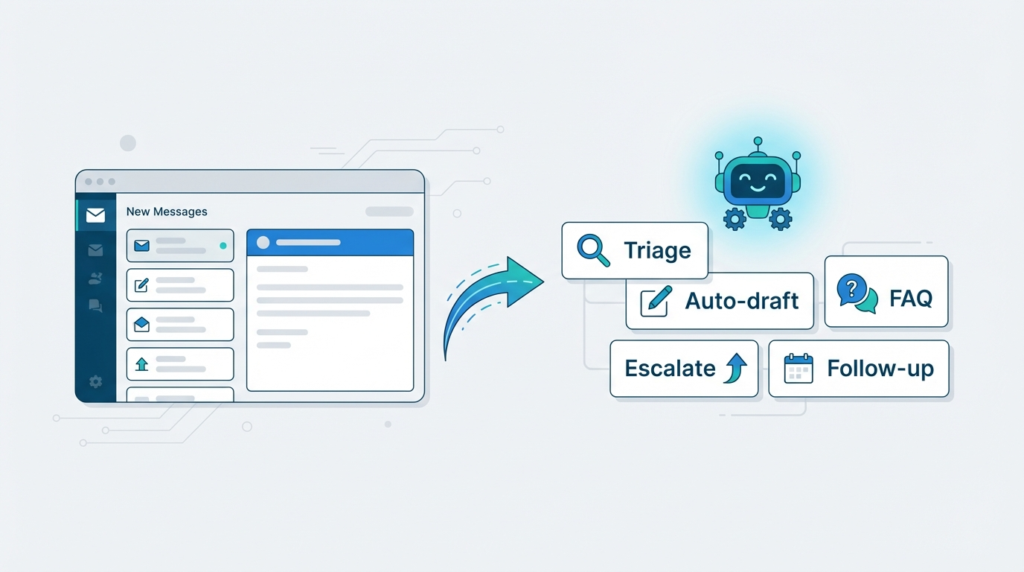
The Big Picture
While the scenarios above handle specific tasks, it helps to see how Jace fits into the entire lifecycle of an email query in your mailbox.
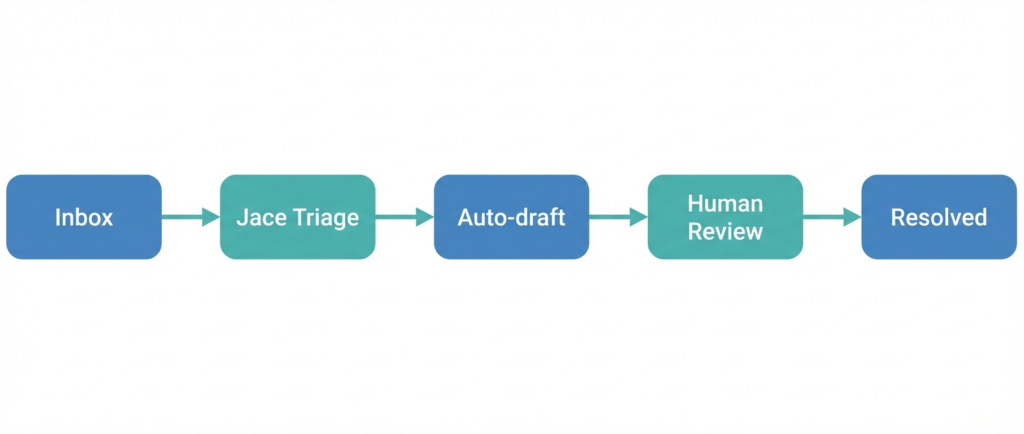
By handling the initial triage and drafting layer, Jace ensures that your human agents only step in when high-value judgment is required—reviewing a draft, approving a refund, or handling a complex escalation.
How Jace maps to your workflow
Start with a compact set of labels and connect each label to an auto-action (draft, suggest, escalate or follow-up).
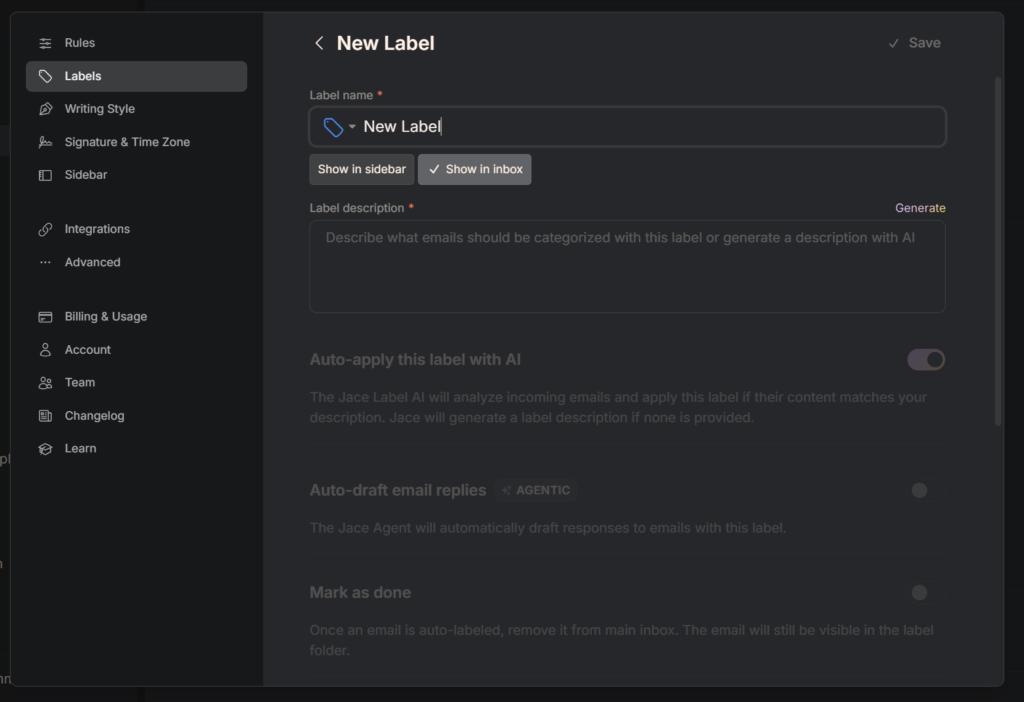
The recommended core labels are:
Support: New, Support: FAQ, Support: Billing, Support: Bug, Support: Escalation, Waiting, Needs Reply, To Do, FYI.
Each label should have an explicit description (keywords, example phrases, and the action to take). Configure auto-drafts first and keep auto-send off except for low-risk FAQ replies after you have monitored classifier confidence.
Jace AI Can Access Your Data, Knowledge and SOPs almost anywhere.
Jace AI allows you to mirror your Support SOPs and standard replies by creating active natural language rules, giving Jace reference data either by uploading files or by integrating existing data sources. This means that it can use that information in its actions and draft replies to save you time and all whilst doing it in the writing style you have taught it.
Here is what data you can give Jace and how your data is handled:
| Item | What you can give Jace | Where it is stored | How to update or remove |
|---|---|---|---|
| Rules / Persistent Info | Natural-language rules (e.g., “Always be polite”) | Saved as Jace rules (agent memory) in your account | Edit or delete in Settings → Rules. |
| Writing Style | Sample sent emails | Stored as writing preset in account | Update in Settings → Writing. |
| Integrations | Access to Drive, OneDrive, Notion, etc. | Files remain in external service; Jace indexes them | Revoke in Settings → Integrations. |
| Reference Files | Excel, PDF, Docs (e.g., Pricing Sheets, Specs) | Stored where they live (Drive/OneDrive) | Update original file (auto-reindex) or remove file. |
| Email Context | Thread content, labels | Indexed in Jace (up to 3 years history) | Delete in source provider or change labels. |
Technical Notes
- Rules are forward-looking: They only apply to messages received after the rule is created.
- Privacy: Jace only indexes content from integrations you explicitly authorize.
- Quotas: Daily auto-draft limits apply (check Settings → Billing).
Common Questions
- Can I give Jace Excel or text files? Yes — You can upload directly into a rule or connect Google Drive or OneDrive. Jace indexes those files for use (like looking up pricing), but the files remain in your storage.
- How long is data saved? Data remains until you remove it or disconnect the integration. Email import covers up to 3 years initially.
- Are there storage limits? Storage limits generally follow your connected service (e.g., Google Drive limits). For AI usage quotas, check your Billing settings.
Mini case example
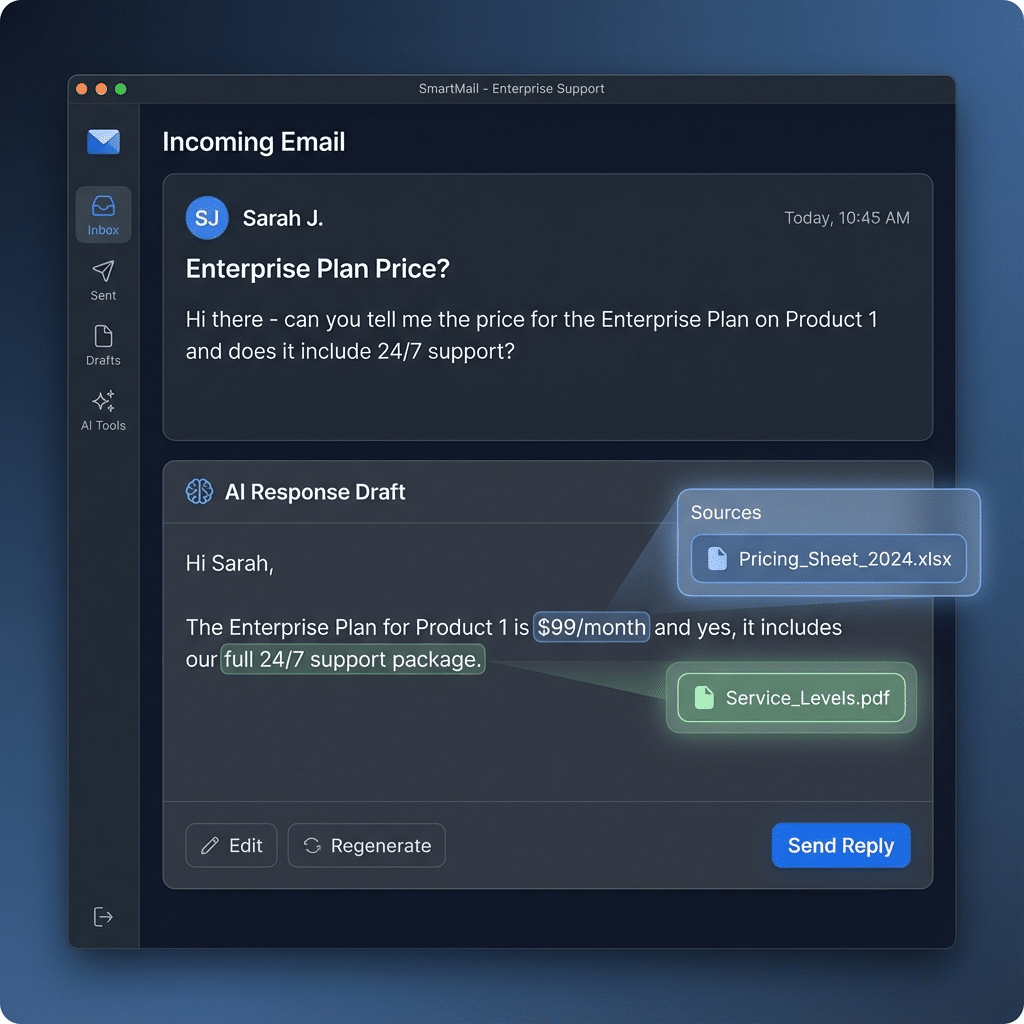
Email: “Hi there – can you tell me the price for the Enterprise Plan on Product 1 and does it include 24/7 support?”
Jace:
- Scans
Pricing_Sheet_2025.xlsx-> Finds “Product 1 Enterprise” = $99/mo.- Scans
Service_Levels.pdf-> Finds “Enterprise” includes 24/7 support.- Drafts Reply: “The Enterprise Plan for Product 1 is $99/month and yes, it includes our full 24/7 support package.”
Workflows & Automations
Jace isn’t just a chatbot; it’s an automation engine similar to Power Automate but built specifically for your email-related processesses. You can build flows that trigger on every new message.
Rules vs. Automations
- Rules: Simple If -> Then. (e.g., “If sender is @partner.com, tag VIP”).
- Automations: Multi-step workflows with logic branches and external integrations.
Example: The “Perfect” Contact Us Flow
Here is how a typical automation handles a new email without human finding it first:
| Step | Action | Logic / Tool |
|---|---|---|
| 1. Ingest | Tag as Support-Inbound | Filters spam immediately. |
| 2. Auto-Ack | Send receipt with Reference # | “Your reference is #1234. We’ll reply in 4h.” |
| 3. Classify | AI scans sentiment & intent | Label as Billing, Tech, or Sales. |
| 4. Route | Assign to specialized team | Billing -> Finance Queue; Tech -> Eng Queue. |
| 5. Integrate | Create Ticket in Helpdesk | Pushes data to Jira/Zendesk/Monday if needed. |
| 6. Alert | Notify Team via Slack | “New P1 ticket from VIP client.” |
This chain reduces “email ping pong” and ensures SLAs are met before a human even opens the thread. These automations are particularly useful when coupled with the Integrations avalaible with Jace AI.
Although almost any systems can be integrated via webhooks, connectors or tools like zapier, at time of writing, some of the main or more common integrations available are:
| Category | Integrations |
|---|---|
| Email providers | Gmail, Outlook / Microsoft 365 |
| Calendar | Google Calendar, Microsoft Calendar (via account connect) |
| Cloud storage & files | Google Drive, OneDrive |
| Collaboration & notes | Slack, Notion |
| Core platform | Jace account settings → Integrations (enable from product |
Rollout and risk management
Suggested rollout:
- Week 1: Create labels, paste descriptions and templates; enable Draft-only auto-actions.
- Week 2: Daily review for 7 days – correct mislabels and refine phrases.
- Week 3: If classifier confidence is stable, enable auto-send for low-risk FAQ replies only.
Key risks: misclassification (mitigate by keeping drafts), sensitive data (never auto-send replies with sensitive PII without review), and KB drift (update KB and templates regularly).
We used the Chat with Jace AI function within the Jace AI tool to help uscreate a Rapid Start checklist that you can download here: JACE AI RAPID START CHECKLIST DOWNLOAD
The power of the AI within the tool was very impressive, its not just about your emails but can help you create artefacts and documents that can then be attached to those draft responses where it makes sense to do so.
What to measure after you implement Jace AI
After you turn Jace on, focus first on a small set of operational and quality metrics that show whether the assistant is speeding up work, maintaining (or improving) experience, and safely automating routine tasks.
Here is a suggestion of things you may want to measure or look for improvement in after implemention:
- Response Time: Time from email arrival to a detailed response or answer to the query. Can Jace help: Yes — Jace logs when it creates drafts and when replies are sent, so you can report first-reply times broken down by Jace-drafted vs human.
- % of emails with an AI draft (adoption): Share of threads where Jace generated a suggested reply that an agent reviewed. Can Jace help: Yes — Jace records every generated draft and whether an agent opened/edited it. Where to get it: Jace draft-generation metrics (counts + opened/edited flags) in the analytics panel.
- SLA compliance rate: Percentage of threads meeting SLA targets (initial response/resolution). Can Jace help: Yes — Jace can improve compliance via auto-acknowledgements and can report SLA hits/misses if SLA rules are configured within the settings or via ticketing system integrations.
- SLA compliance rate: Percent of threads meeting your SLA targets (initial response or resolution). Why: operational and contractual health. How to measure: 100 × threads_meeting_SLA / threads_with_SLA. Early target: depends on SLA; pilot ~80–85%, enterprise 95%+.
- Estimated time saved per day: Aggregate time saved because Jace drafts, labels, or looks up KB answers. Can Jace help: Partial — Jace provides counts of drafts, template fills, and average edit/open times which you can convert into time-saved estimates.
Quick tips
- Keep templates short. Short templates are easier to auto-fill correctly.
- Make label descriptions actionable: include exact keywords and example phrases.
- Keep humans in the loop for escalations and anything involving sensitive customer data.
Conclusion
Automate acknowledgements and FAQ replies first, then expand to structured extraction and escalations — you keep final control while Jace does the heavy lifting. The real multiplier is a well‑maintained knowledge base plus clear rules: Knowledge base answers let Jace reply accurately, and precise label/rule definitions make routing and extraction reliable. Connect your ticketing, survey, and docs (Drive/OneDrive/Notion), so Jace can surface and pull the freshest source content, and attach that structured data into your workflow. Start small, monitor the automation results and quality metrics, and raise confidence thresholds as accuracy and KB coverage improve — that way, you scale time saved and consistency without surrendering control.
Ready to get started? Rapid launch — 30 to 90 minutes
Click here to sign up for your – 7-day Free Jace trial … OR use this QR code:
Download the checklist: JACE AI RAPID START CHECKLIST DOWNLOAD
Then you will have all you need and be ready to get started automating your mailbox based on rules, data, response templates and writing style, all that you define and teach Jace AI to do.